Build & Deploy Cloud Infrastructure Using Azure DevOps and Terraform

Recently, I started exploring Azure DevOps and its features, which have significantly streamlined my workflow. One of its standout capabilities is the built-in pipeline functionality, enabling seamless automation for cloud environment deployments.
What is Azure DevOps?
Azure DevOps is a cloud-based DevOps platform by Microsoft that provides a suite of tools and services to plan, develop, test, deliver, and monitor software. It’s widely used by developers, DevOps engineers, and infrastructure teams to manage the entire lifecycle of software and infrastructure delivery.
If you're familiar with GitHub, you already know its core functionalities—code repositories, collaboration, and automation via GitHub Actions. Azure DevOps is similar but more deeply integrated into the Microsoft ecosystem, while still versatile enough to work with any language or cloud provider.
Key services of Azure DevOps:
- Repos: Git-based source control
- Pipelines: Automate building, testing, and deploying code
- Boards: Agile project management - work items, sprints, backlogs
- Artifacts: Package management
- Test plans: Manual and exploratory testing tools
In this article, I’ll walk through a simple, beginner-friendly use case: automating Azure infrastructure deployment using Azure DevOps Pipelines.
Infrastructure as Code (IaC)
When managing cloud infrastructure, adopting an Infrastructure as Code (IaC) approach simplifies deployment and operations.
IaC means defining your entire cloud infrastructure in code, which can be deployed and reused using automation tools—eliminating the need for manual resource creation via a cloud portal.
For example:
- Manually creating 1 virtual network and 1 virtual machine in Azure is quick.
- But deploying 13 virtual networks, 45 subnets, peerings, and 113 virtual machines manually? That’s not scalable..
With IaC:
- Writing the code might take 30 minutes
- Deploying 1,000 virtual machines becomes a matter of minutes
- The infrastructure is reproducible, version-controlled, and scalable
A Simple Use Case: Azure DevOps + Terraform
Let’s deploy a basic infrastructure setup:
- A new resource group (
azure-devops-resourcegroup) - A virtual network (
192.168.0.0/16) - A subnet (
192.168.1.0/24) - An Ubuntu 22.04 VM with a disk and public IP
- Password authentication for the VM
- Terraform state stored in an Azure Storage Account
While this setup could be manually deployed in ~3 minutes, automating it with Terraform and Azure DevOps ensures scalability, collaboration, and repeatability.
Why Terraform?
I prefer Terraform for cloud infrastructure automation due to its flexibility and multi-cloud support. However, alternatives like Azure Bicep (for Azure-native deployments) are also viable.
The DevOps Advantage
Azure DevOps (or similar CI/CD tools like GitHub Actions/GitLab CI) introduces best practices:
- Junior engineers can modify infrastructure code in a branch
- A pull request (PR) triggers a review by a senior engineer
- Once approved, the pipeline automatically deploys the changes
This ensures collaboration, visibility, and controlled deployments.
Agent Pools: The Execution Engine
Where does the Terraform code run? Azure DevOps uses Agent Pools—either Microsoft-hosted (shared) or self-hosted (custom) agents.
For this example, I used a self-hosted Linux agent (since I had a dedicated server).
📌 Learn more about Agent Pools:
Microsoft Docs: Azure DevOps Agents
How the Automation Works
Step 1: Repository Setup
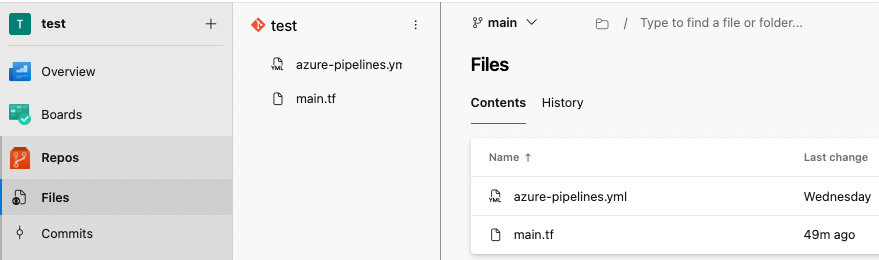
In Azure DevOps, I created a new repository called test. Added two files:
main.tf(Terraform infrastructure definition)azure-pipelines.yml(Pipeline instructions)
main.tf file. In production, modularizing Terraform code is recommended.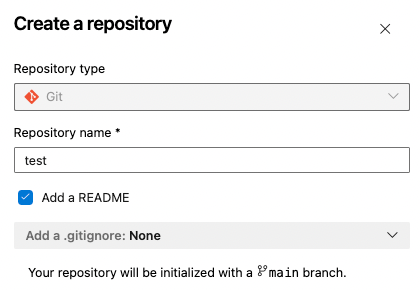
This is the content of main.tf
# Replace subscription ID with your own Azure subscription ID
provider "azurerm" {
  features {}
  subscription_id = "xxxxxxxxxxxxxxxxx"
}

# This section tells Terraform to store the state on Azure backend
terraform {
  backend "azurerm" {}
}

# This creates a new resource group
resource "azurerm_resource_group" "example" {
  name     = "azure-devops-resourcegroup"
  location = "UK South"
}

# This creates a new virtual network
resource "azurerm_virtual_network" "example" {
  name                = "new-vnet"
  resource_group_name = azurerm_resource_group.example.name
  location            = azurerm_resource_group.example.location
  address_space       = ["192.168.0.0/16"]
}

# This creates a new subnet
resource "azurerm_subnet" "example" {
  name                 = "example-subnet"
  resource_group_name  = azurerm_resource_group.example.name
  virtual_network_name = azurerm_virtual_network.example.name
  address_prefixes     = ["192.168.1.0/24"]
}

# Public IP for the Ubuntu VM
resource "azurerm_public_ip" "ubuntu" {
  name                = "ubuntu-public-ip"
  location            = azurerm_resource_group.example.location
  resource_group_name = azurerm_resource_group.example.name
  allocation_method   = "Dynamic"
  sku                 = "Basic"
}

# Network Interface without NSG
resource "azurerm_network_interface" "ubuntu" {
  name                = "ubuntu-nic"
  location            = azurerm_resource_group.example.location
  resource_group_name = azurerm_resource_group.example.name

  ip_configuration {
    name                          = "internal"
    subnet_id                     = azurerm_subnet.example.id
    private_ip_address_allocation = "Dynamic"
    public_ip_address_id          = azurerm_public_ip.ubuntu.id
  }
}

resource "azurerm_linux_virtual_machine" "ubuntu" {
  name                = "ubuntu-vm"
  resource_group_name = azurerm_resource_group.example.name
  location            = azurerm_resource_group.example.location
  size                = "Standard_B1s"
  admin_username      = "azureuser"
  admin_password      = "P@ssw0rd1234!"  # Replace with a secure password
  network_interface_ids = [
    azurerm_network_interface.ubuntu.id,
  ]

  os_disk {
    caching              = "ReadWrite"
    storage_account_type = "Standard_LRS"
    name                 = "ubuntu-osdisk"
  }

  source_image_reference {
    publisher = "Canonical"
    offer     = "0001-com-ubuntu-server-jammy"
    sku       = "22_04-lts-gen2"
    version   = "latest"
  }

  disable_password_authentication = false
}
This file is our main infrastructure as code file, which describes everything we want to deploy.
Next one is azure-pipelines.yml, which contains the instructions to Azure DevOps what to do within the pipeline.
# Starter pipeline
# Start with a minimal pipeline that you can customize to build and deploy your code.
# Add steps that build, run tests, deploy, and more:
# https://aka.ms/yaml

# This is the trigger event, where we define what initiates our automation
# In our case, modification (direct edit or merge) into the main branch
trigger:
  branches:
    include:
      - main

pr: none

# This is my own server pool, where the agent is running
# Terraform will be running here
pool: own-server-pool


# These are variables to reference an existing storage account
# where we will store our Terraform state file
variables:
  resourcegroup: 'RG1'
  accountname: 'tfstateazuredevopsforme'
  containername: 'terraformcontainer'
  key: 'tfstatealter'

# We define 2 stages in our pipeline. Validate and Deploy
# Deploy can only run once Validate has run without an error
stages:
  - stage: tfvalidate
    jobs:
      - job: validate
        continueOnError: false
        steps:
          - task: TerraformInstaller@1
            displayName: install
            inputs:
              terraformVersion: 'latest'
          - task: TerraformTaskV4@4
            displayName: init
            inputs:
              provider: 'azurerm'
              command: 'init'
              backendServiceArm: 'service-conn-azure'
              backendAzureRmResourceGroupName: '$(resourcegroup)'
              backendAzureRmStorageAccountName: '$(accountname)'
              backendAzureRmContainerName: '$(containername)'
              backendAzureRmKey: '$(key)'
          - task: TerraformTaskV4@4
            displayName: validate
            inputs:
              provider: 'azurerm'
              command: 'validate'
  - stage: tfdeploy
    condition: succeeded('tfvalidate')
    dependsOn: tfvalidate
    jobs:
      - job: apply
        steps:
          - task: TerraformInstaller@1
            displayName: install
            inputs:
              terraformVersion: 'latest'
          - task: TerraformTaskV4@4
            displayName: init
            inputs:
              provider: 'azurerm'
              command: 'init'
              backendServiceArm: 'service-conn-azure'
              backendAzureRmResourceGroupName: '$(resourcegroup)'
              backendAzureRmStorageAccountName: '$(accountname)'
              backendAzureRmContainerName: '$(containername)'
              backendAzureRmKey: '$(key)'
          - task: TerraformTaskV4@4
            displayName: plan
            inputs:
              provider: 'azurerm'
              command: 'plan'
              environmentServiceNameAzureRM: 'service-conn-azure'
          - task: TerraformTaskV4@4
            displayName: apply
            inputs:
              provider: 'azurerm'
              command: 'apply'
              environmentServiceNameAzureRM: 'service-conn-azure'
Even with just these two files, we now have a fully functional Azure DevOps automation pipeline that deploys our Azure infrastructure—completely hands-free.
Step 2: Branching & Pull Requests
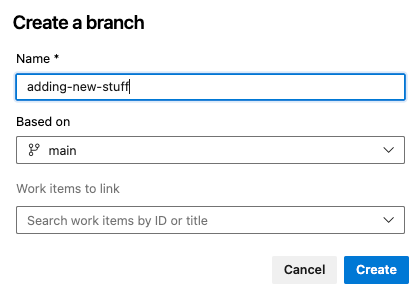
- Created a new branch (
adding-new-stuff).
- Modified
main.tf(e.g., added/deleted resources). I save the file, then a Create pull request button appears:

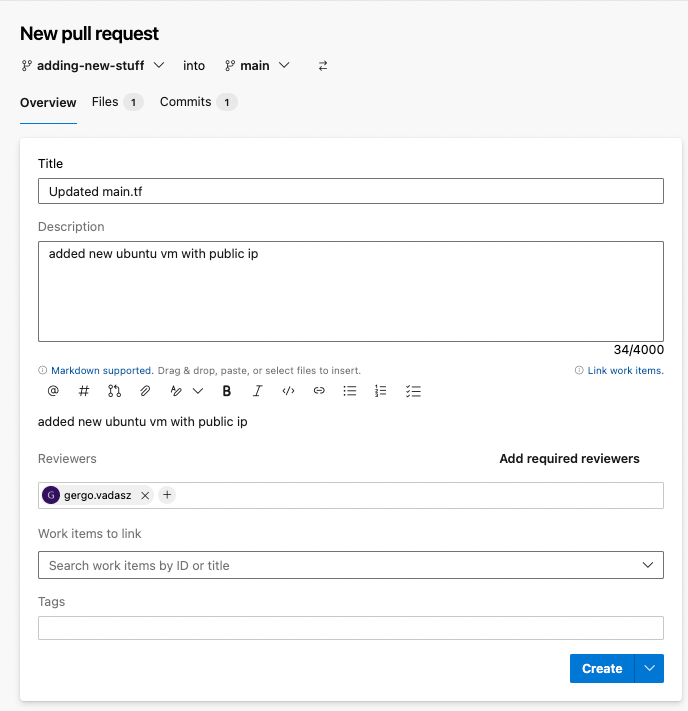
- Opened a pull request (PR) for review.
I create the pull request, which will merge my newly created branch into the main branch. I can add approvers if needed, so people will get notifications that their approval is needed.
Step 3: Approval & Deployment
Once approved (since I was the reviewer), I clicked the Complete button, merging the new branch and its modifications into the main branch. The adding-new-stuff branch gets deleted with the merge automatically.
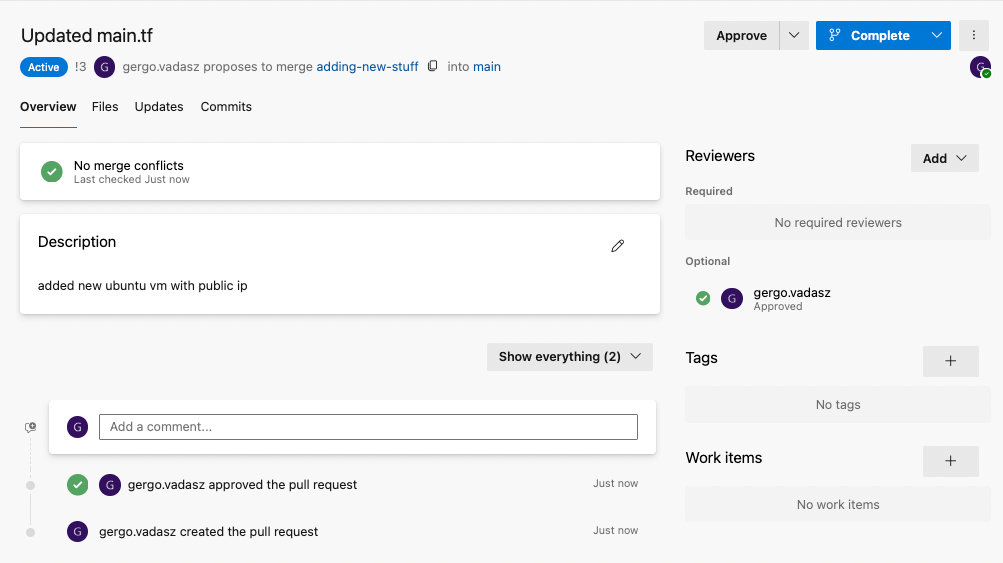
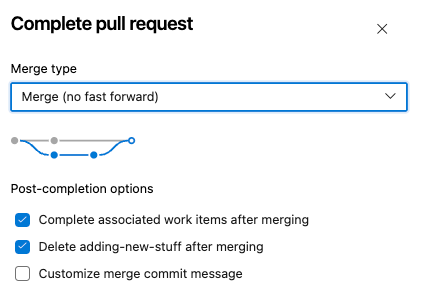
Upon merging, the pipeline automatically triggered, deploying the changes.
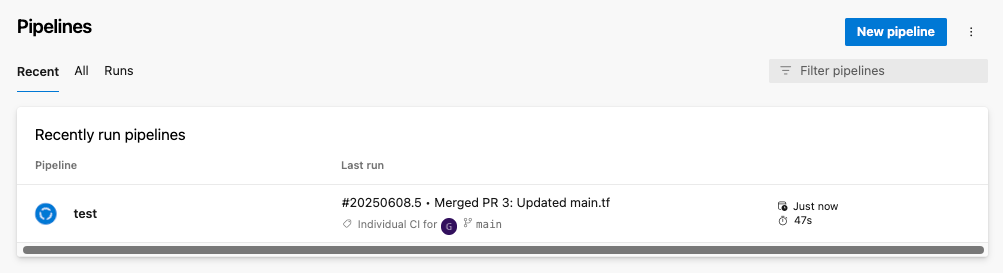
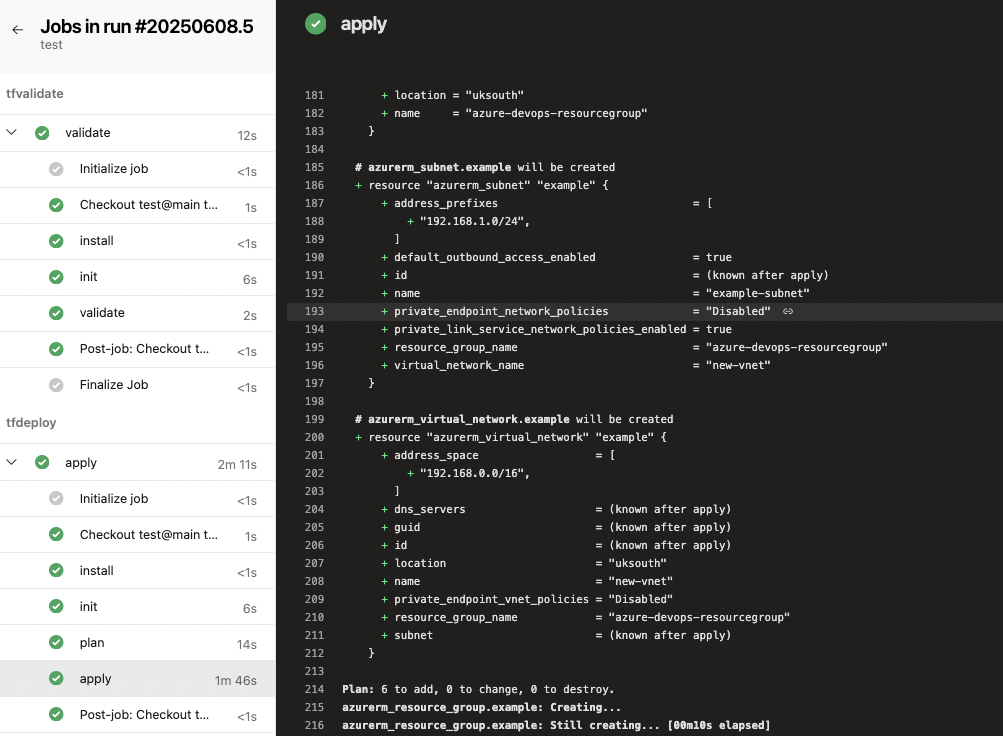
If we open this pipeline, we see the running jobs in real time. After couple of minutes, we can see both validation and deploy was successful:
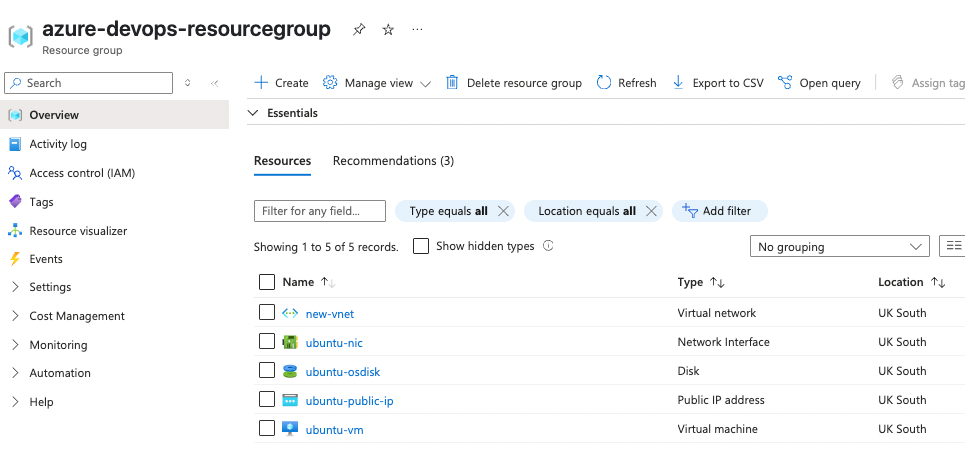
If we go to Azure Portal, we can see the resources defined in the main.tf file have been created, without a manual touch:
Summary
This example demonstrates how Azure DevOps + Terraform can automate cloud infrastructure deployment. Benefits include:
✅ Faster deployments (scalable beyond manual efforts)
✅ Collaboration & approval workflows (via PRs)
✅ Reproducible infrastructure (IaC best practices)
By adopting this approach, teams can standardize deployments, reduce errors, and accelerate cloud operations.
Feel free to reach out if you have any questions—whether it worked perfectly for you or you ran into issues. I’d be happy to help!


